Animated images on iOS with ImageIO and CADisplayLink
 Jul 13, 2026
11 min read
Jul 13, 2026
11 min readTable of Contents
CADisplayLink, including the fix for a stutter on the first loop.Introduction #
At work, I added animated WebP, GIF and AVIF support to a UIKit app. We had banners in paging carousels, and I wanted each banner to play while it was visible, pause when you swiped away, and pick up where it left off when you came back.
We already had a shared image loader that took a URL, downloaded the image, and returned a UIImage for our image views to display. It cached downloaded responses in memory and on disk, kept loaded images in a memory cache, and shared a single download when several views requested the same URL. The views themselves used a small UIImageView subclass.
When we started using animated WebP files, though, UIImage(data:) gave us the first frame and the image stayed still. The same file plays in the browser, as you can see here:

An animated WebP with 100 frames, each lasting 50 ms.
To add playback, I extended the loader to detect animated files and attach their original data to the image it returned, which the image view could then use to start a player. That player decodes frames in the background with ImageIO and displays them using CADisplayLink, keeping the next frame ready while the current one is on screen.
Choosing a player #
Apple’s animation APIs #
I first tried ImageIO’s CGAnimateImageDataWithBlock, which takes the image data and calls a block for each frame. It played my WebP, even though Apple documents it for GIF and APNG, but unfortunately the frame callbacks run on the main queue even when you start it from a background queue.
I also needed to pause a banner when it moved offscreen and resume it when it came back. The callback lets you stop the animation, but there’s no playback session to pause and resume, so I moved on. SDWebImage ran into the same issue when considering this API.
Another option was UIImage.animatedImage(with:duration:), although its array of frames and single duration don’t directly represent a file’s per-frame delays. It would also mean decoding the whole animation upfront, which gets expensive for longer files.
For example, one of my test files is a 756×304 WebP with 114 frames, which takes roughly 100 MiB when every frame is decoded at four bytes per pixel. Keeping just the current and next frames brings that down to about 1.75 MiB, plus the poster, encoded data, and decoder overhead. You can try different image sizes and frame counts below:
What other libraries do #
For buffering, I looked at FLAnimatedImage, which adjusts its GIF frame cache to memory pressure, and Kingfisher’s AnimatedImageView, which preloads 10 frames by default. Kingfisher also lets you change that count and scale frames to the view’s size.
SDWebImage offers both ImageIO-based WebP decoding on iOS 14+ and a separate libwebp decoder. It also exposes SDAnimatedImagePlayer for use with an app’s own views.
I went with an ImageIO player that prepares one frame ahead and connects to our loader and image view, but first I wanted to check how the native decoder handled our WebP files.
Testing native WebP decoding #
Although ImageIO supports WebP on iOS 14+, Discord’s engineers found that animated files could slow down progressively, especially larger ones. Their 10-second test animation ran more than three seconds behind, so they switched to libwebp.
In my case, the 114-frame banner played steadily over repeated loops on iOS 26 once I’d fixed the first-loop stutter described below. That file has 60 and 70 ms frame delays and loops indefinitely, and the result was good enough for me to keep ImageIO. There are also blending differences between the decoders, so I would check the files you plan to display on the OS versions you support.
Implementation #
The loader creates the poster image, and the image view creates the player when it receives that image:
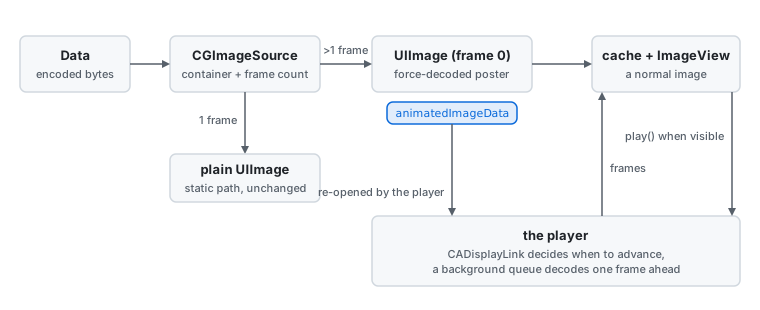
From downloaded image to playback.
Detecting animation while loading #
Since a .webp URL can point to a static image, and a CDN can change formats without changing the URL, I check the downloaded data’s container type and frame count:
 1public static func animatedImage(from data: Data) -> UIImage? {
 2    guard let source = CGImageSourceCreateWithData(data as CFData, nil),
 3          Format(source: source) != nil,
 4          CGImageSourceGetCount(source) > 1,
 5          let posterFrame = CGImageSourceCreateImageAtIndex(source, 0, nil)
 6    else {
 7        return nil
 8    }
 9    let image = UIImage(cgImage: decodedForDisplay(posterFrame) ?? posterFrame)
10    image.animatedImageData = data
11    return image
12}
Format checks CGImageSourceGetType for WebP, GIF, or animated AVIF (public.avis, on iOS 16+). Static images continue through the regular UIImage(data:) path.
For an animation, I return the first frame as a UIImage and attach the original Data through an associated object, so the loader can cache the poster and return it through the same API. When our image view receives it, it reads that data and creates the player.
I also updated the cache’s cost calculation to include those bytes:
1let bytesPerFrame = cgImage.height * cgImage.bytesPerRow
2let frameCount = images?.count ?? 1
3let animatedImageDataSize = animatedImageData?.count ?? 0
4return frameCount * bytesPerFrame + animatedImageDataSize
For the cached poster, frameCount is one, so its cost includes the bitmap and the original file data. The player keeps its own playback buffer separately.
Reading frame durations #
ImageIO exposes timing properties in a format-specific dictionary: kCGImagePropertyWebPDictionary, kCGImagePropertyGIFDictionary, or kCGImagePropertyAVISDictionary.
I read the unclamped delay first, then the regular delay:
1let delay = (timing[unclampedDelayTimeKey] ?? timing[delayTimeKey]) as? TimeInterval
2guard let delay, delay >= 0.011 else { return 0.1 }
3return delay
If the delay is missing or below 11 ms, I use 100 ms, following SDWebImage’s ImageIO animated coder. Its comment traces this rule back to how browsers handle GIFs with very short delays; I use it for all three formats.
I also read the loop count from the container-level dictionary, where 0 means the animation repeats indefinitely. For WebP, a finite count is the number of passes, so I check it before wrapping back to frame 0. A file with a count of one then stays on its last frame after playing once.
Playing one frame at a time #
Each player has its own CGImageSource and serial decode queue, where it prepares the next frame while the current one is on screen. Once that frame is ready and it’s time to advance, the display-link callback puts it in the image view.
The demo below runs the same timing logic at a slower speed. Increase decode time above 50 ms to see the player wait for a frame, or pause and step through the display-link ticks:
To keep time as the display’s refresh rate changes, I use the difference between consecutive targetTimestamp values, as recommended in Apple’s variable-refresh-rate session. Here’s the timing part of tick, with the checks for finite loops and the view being deallocated left out:
 1guard view.isVisibleForAnimatedPlayback else {
 2    lastTargetTimestamp = nil
 3    return
 4}
 5if let lastTargetTimestamp {
 6    accumulatedTime += link.targetTimestamp - lastTargetTimestamp
 7}
 8lastTargetTimestamp = link.targetTimestamp
 9
10guard accumulatedTime >= frameDurations[currentIndex] else {
11    prefetchNextFrame()
12    return
13}
14guard let pendingFrame, pendingFrame.index == nextIndex else {
15    accumulatedTime = frameDurations[currentIndex]
16    prefetchNextFrame()
17    return
18}
19view.setImageBypassingObservers(pendingFrame.image)
20accumulatedTime -= frameDurations[currentIndex]
21currentIndex = pendingFrame.index
22accumulatedTime = min(accumulatedTime, frameDurations[currentIndex])
23self.pendingFrame = nil
24prefetchNextFrame()
If decoding takes too long, the player keeps showing the current frame and caps the elapsed time at that frame’s duration. Then, when the next frame is ready, it advances by one and carries on, so a stall slows the animation down without skipping frames.
Keeping only one frame ahead limits bitmap memory, although it also leaves less room for an occasional slow decode than a larger buffer like Kingfisher’s.
Our image view’s regular image setter resets playback and notifies observers, which would tear down the player on every frame. That’s why I added setImageBypassingObservers, which assigns the frame through super.image.
I add the display link to the main run loop in .common mode so it keeps running during scrolling, and give it a weak proxy as its target. Since CADisplayLink retains its target, using the player directly would keep it alive and stop deinit from ever invalidating the link.
Fixing the first-loop stutter #
The first loop still stuttered even though I was calling CGImageSourceCreateImageAtIndex on the background queue, while later loops were much smoother.
As it turns out, ImageIO can return a CGImage that only decodes its pixels when it’s first drawn, so handing that image to the view was still leaving work for the main thread. To finish decoding on the background queue, I draw each frame into a bitmap context before passing it to the view:
 1static func decodedForDisplay(_ image: CGImage) -> CGImage? {
 2    let alphaInfo = image.alphaInfo
 3    let hasAlpha = !(alphaInfo == .none || alphaInfo == .noneSkipFirst || alphaInfo == .noneSkipLast)
 4    let bitmapInfo = (hasAlpha ? CGImageAlphaInfo.premultipliedFirst.rawValue : CGImageAlphaInfo.noneSkipFirst.rawValue)
 5        | CGBitmapInfo.byteOrder32Little.rawValue
 6    guard let context = CGContext(
 7        data: nil,
 8        width: image.width,
 9        height: image.height,
10        bitsPerComponent: 8,
11        bytesPerRow: 0,
12        space: CGColorSpaceCreateDeviceRGB(),
13        bitmapInfo: bitmapInfo
14    ) else { return nil }
15    context.draw(image, in: CGRect(x: 0, y: 0, width: image.width, height: image.height))
16    return context.makeImage()
17}
With the pixels prepared before the image reached the view, the first-loop stutter went away. I use the same helper for the poster, and since the context creates an 8-bit RGB bitmap, the output is SDR.
You can also prepare images with UIKit’s UIImage.preparingForDisplay() on iOS 15+, which Apple recommends calling on a background serial queue when working with many images. SDWebImage uses UIKit’s preparation APIs too, although I used the bitmap copy above for these frames.
Because the player keeps its own decoded frames, I create its image source with kCGImageSourceShouldCache: false to avoid an extra ImageIO cache. The decoder still needs working memory, and if a frame fails to decode, I pause playback on the image already showing.
Pausing offscreen images #
A carousel page can stay attached to the window after you swipe it offscreen. To decide whether to keep playing, I check the image view’s position and walk up its parents for hidden or transparent views:
1var isVisibleForAnimatedPlayback: Bool {
2    guard let window else { return false }
3    var current: UIView? = self
4    while let view = current {
5        guard !view.isHidden, view.alpha > 0.01 else { return false }
6        current = view.superview
7    }
8    return window.bounds.intersects(convert(bounds, to: window))
9}
When this check fails in tick, I clear lastTargetTimestamp and stop requesting frames, while allowing any decode already in progress to finish. Clearing the timestamp means the next tick won’t count the time spent offscreen, so when you swipe back, playback resumes from the frame you left it on. You can try this with the demo’s Move offscreen toggle.
For views that are removed from the window, I pause the display link in didMoveToWindow. If a view stays attached but moves offscreen, the link keeps checking visibility so it can resume playback when the view returns.
This is a window-bounds check; it does not account for a smaller parent clipping the image or another view covering it.
Accessibility and Low Power Mode #
I also made playback respect three system settings:
- Reduce Motion reduces movement and animation for people who prefer less motion onscreen, so I show the poster when it’s enabled.
- Auto-Play Animated Images controls whether animated images play automatically, so I show the poster when it’s turned off.
- Low Power Mode reduces activity to save battery, so I show the poster when it’s enabled to avoid spending power on animation.
For Auto-Play Animated Images, I use AccessibilitySettings.animatedImagesEnabled on iOS 18+ and AXAnimatedImagesEnabled() on iOS 17, defaulting to enabled on older systems. These checks run when an image is assigned, so a setting change takes effect on the next assignment.
Nuke’s player #
After I worked on this, Nuke added native animated-image support using the same basics: ImageIO for background decoding and CADisplayLink for playback. Its player is much more advanced, though, with shared frame buffers, frames cached across loops, downsampling to the displayed size, and a display-link rate that adjusts to the animation.
Conclusion #
Animated images ended up being more work than I expected. Getting one to play is only the beginning, because you also have to think about how much memory it uses, whether decoding gets in the way of scrolling, and what happens when the view moves offscreen. Then there are the different formats and their timing rules, along with accessibility settings to respect. Getting playback smooth while keeping memory and CPU use low takes some care, especially when several images can be playing at once.
References #
- ImageIO and CGAnimateImageDataWithBlock in Apple’s documentation
- UIImage.preparingForDisplay()
- Optimize for variable refresh rate displays from WWDC21
- Modern Image Formats at Discord
- SDWebImage, its native WebP notes, and system animator discussion
- Kingfisher’s AnimatedImageView
- FLAnimatedImage
- Nuke: Play animated images in NukeUI, PR #958
- WebP Container Specification